 CodaKeys
Guide
Getting started with CodaKeys
From the download to your first question about a passage. Words in mono are the ones the app shows.
Before you start
You need a Mac with Apple silicon running macOS 13 or later, and a Claude account that can use Claude Code: a Pro, Max, Team or Enterprise plan, or an Anthropic Console account. The free Claude plan does not include Claude Code. (CodaKeys itself runs on macOS 12, but Claude Code needs 13.) CodaKeys is free while in beta; your Claude plan is separate.
Install CodaKeys
- Ask for the beta on the home page. Once you’re approved, an email from beta@codakeys.com brings your own download link; open it to download the DMG. (When CodaKeys is public, the DMG is on Releases.)
- Drag CodaKeys to Applications, then open it from there. It is signed and notarized by Apple.
- macOS asks once for the microphone, with the app’s reason: CodaKeys records from your microphone, and hears you when you talk to Claude. Allow it to record and to talk to Claude. You can change it later in Settings › Permissions.
Settings is in the File menu, or press ⌘,.
Install Claude Code and sign in
The Claude panel runs your own copy of Claude Code, Anthropic’s command-line tool. Install it and sign in once.
- Open Terminal and run:
curl -fsSL https://claude.ai/install.sh | bash - Then run this once, and sign in to your Claude account when it asks:
claude - Back in CodaKeys, press Restart at the top of the Claude panel.
Or stay in the app: Settings › Studio Setup › Talk to Claude has a Claude Code CLI row, and its Install button runs the same command. You still sign in once from Terminal.
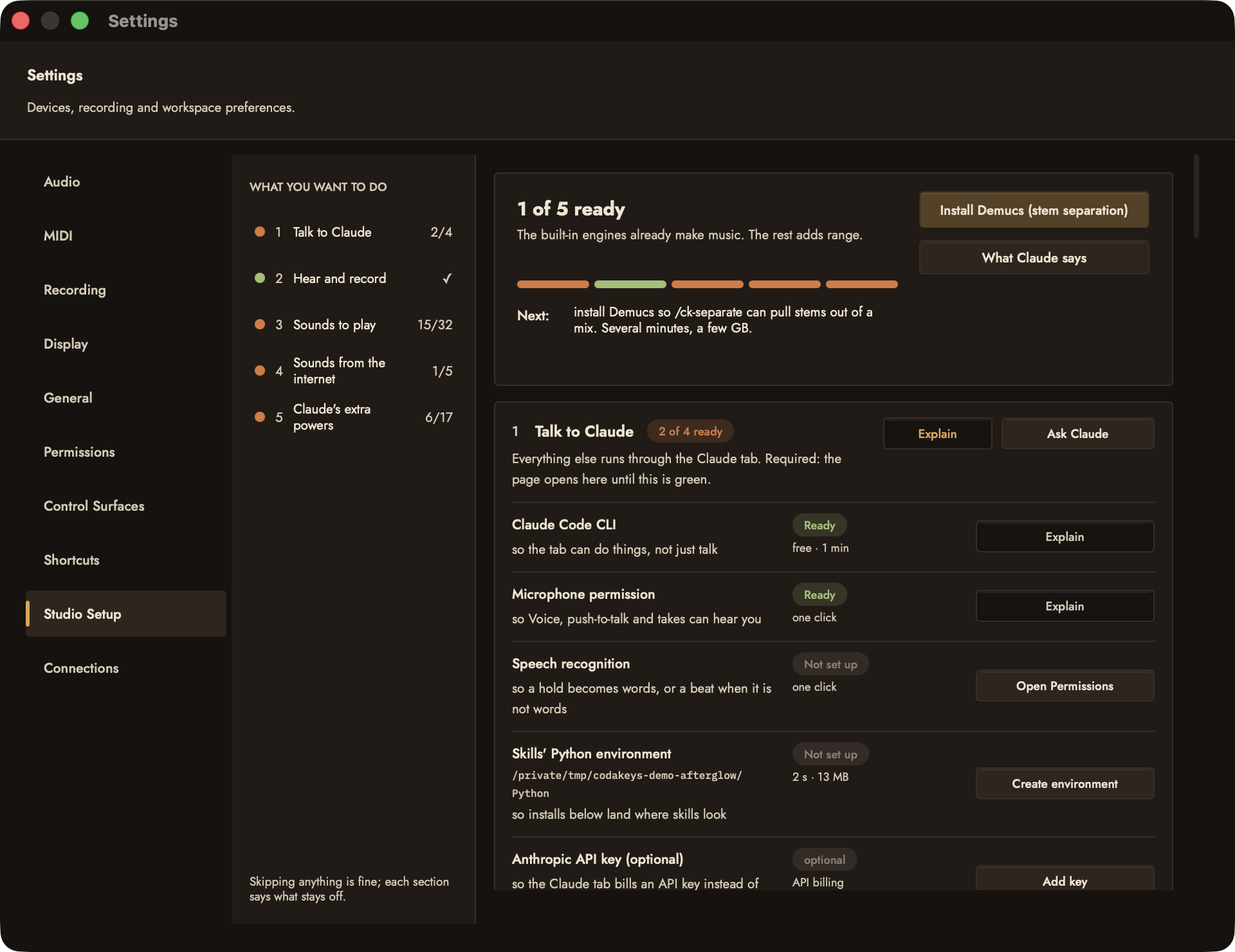
If the panel says Claude Code isn't installed, it prints both ways to install, including this one for people who use npm:npm install -g @anthropic-ai/claude-codeInstall, sign in, then press Restart.
First launch
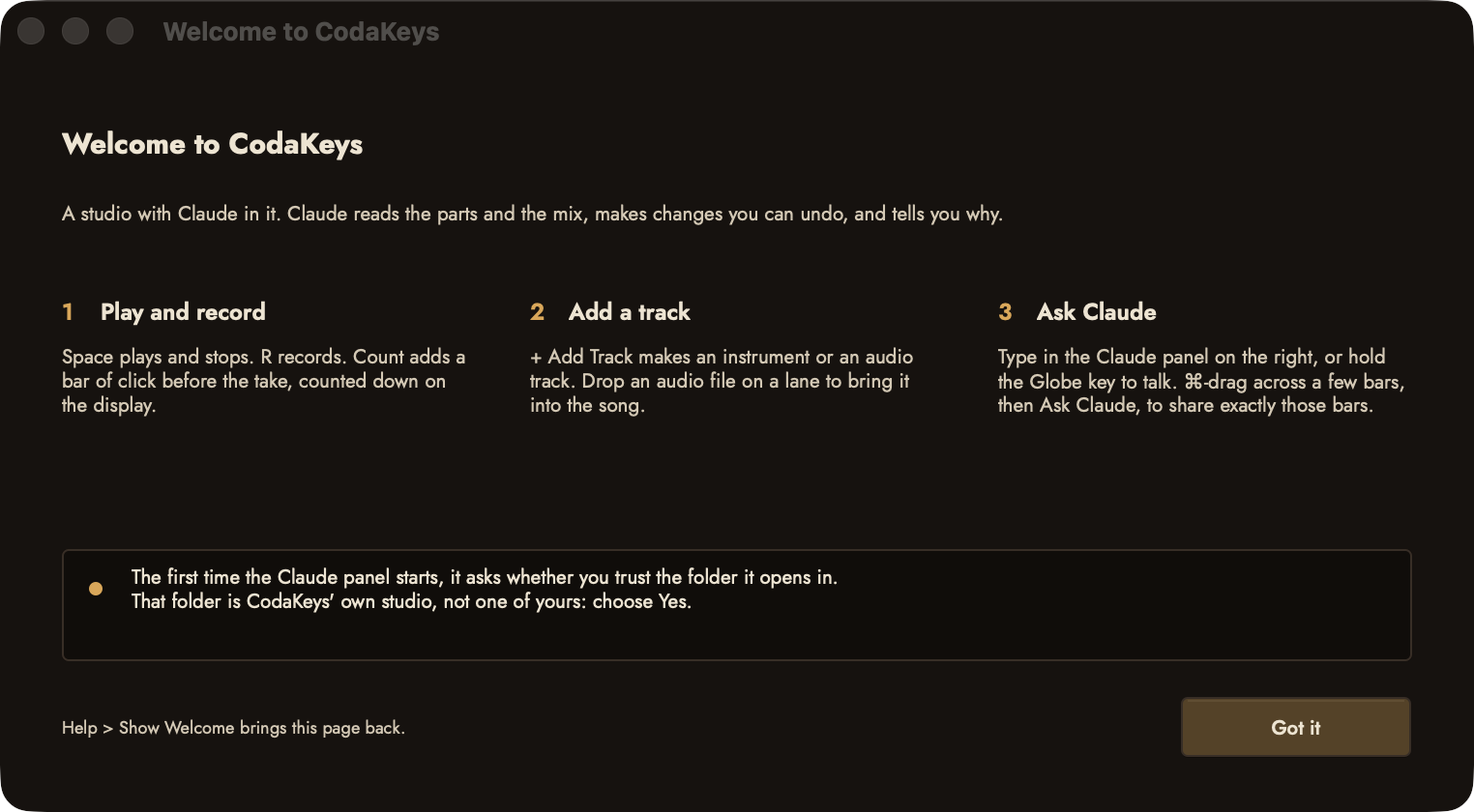
The first time CodaKeys opens, a Welcome to CodaKeys window shows three ways in: Play and record, Add a track and Ask Claude. Got it closes it, and Help › Show Welcome brings it back.
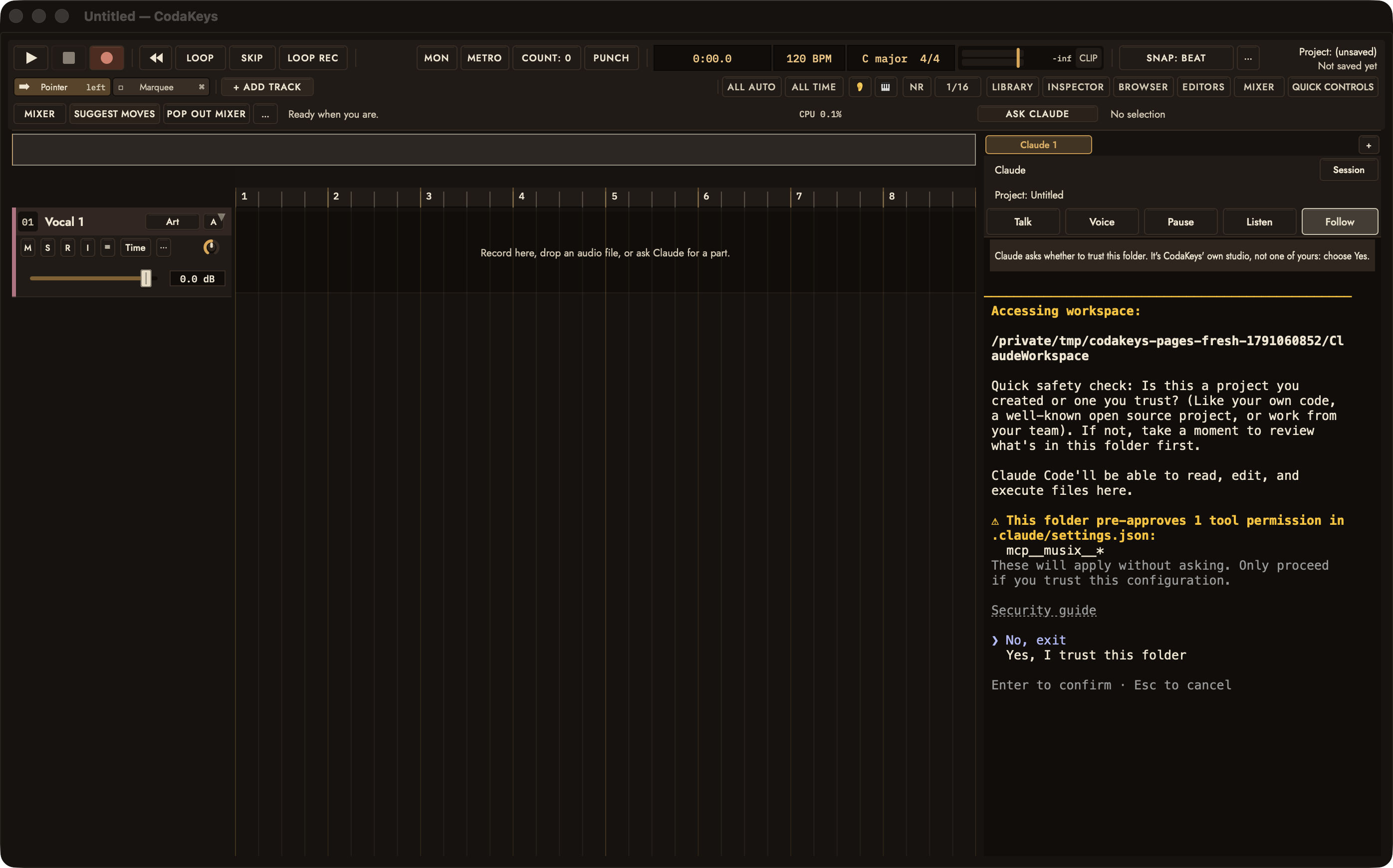
The Claude panel on the right starts Claude Code. The first time, Claude Code asks whether you trust the folder it runs in, and CodaKeys explains above it: Claude asks whether to trust this folder. It's CodaKeys' own studio, not one of yours: choose Yes. That folder is CodaKeys’ own workspace in your Library, not one of your folders, so Yes is safe.
If Claude Code isn’t signed in yet, its own sign-in screen shows in the panel. Follow it there, or sign in from Terminal as above and press Restart.
Your first project
Start from a template, add a track, and play something in.
- File › New Project (⌘N) opens a list of starting templates. Choose one and press Create.
- + Add Track in the toolbar adds an Audio Track or a Software Instrument.
- Choose a sound with the track’s Inst button, or open Library in the toolbar and double-click a patch, or drag it onto a track.
- To record, arm the track with its R button and press R. Count: 0 sets the count-in (0, 1, 2 or 4 bars) and Metro turns the click on.
- Double-click a MIDI region to open the piano roll. Double-click empty grid to add a note; Delete removes the selected notes, ⌘J quantizes and ⇧⌘H humanizes.
- Space plays and stops, Return goes back to the start, and ⌘S saves.
Ask Claude about a passage
This is the heart of CodaKeys: point at the music, then ask.
- Hold ⌘ and drag across the bars you mean, on the track you mean. ⌘-drag again to add another range.
- Press Ask Claude in the top bar, or choose Window › Ask Claude About Selection.
- A tag for each range appears in the Claude panel’s input, like “[Notes: Keys @ bars 25-32]”. Nothing is sent yet.
- Type your question after the tags, in your own words, and press Return.
![Afterglow with Verse 2 selected on the Keys track; after Ask Claude, the tag [Notes: Keys @ bars 25-32] waits unsent in the Claude panel’s input](/screens/guide/ask-tags.png)
Claude reads the bars you attached, makes the change, and tells you why. What it writes is ordinary MIDI, audio and mixer settings you can play, edit or undo.
Approvals and undo
Everyday edits happen without a prompt. When something costs money, installs software, connects an account, or would open a project over unsaved changes, a card at the top of the window says what Claude wants to do, and waits. The status line reads Claude is asking first.
Approve lets it run and Skip declines; Return and Escape do the same. Show details tells you more about the request. Approve all is never offered for anything that spends money.
To be asked before Claude removes material too, turn on Settings › General › Ask before Claude deletes or replaces material (regions, tracks, sections).
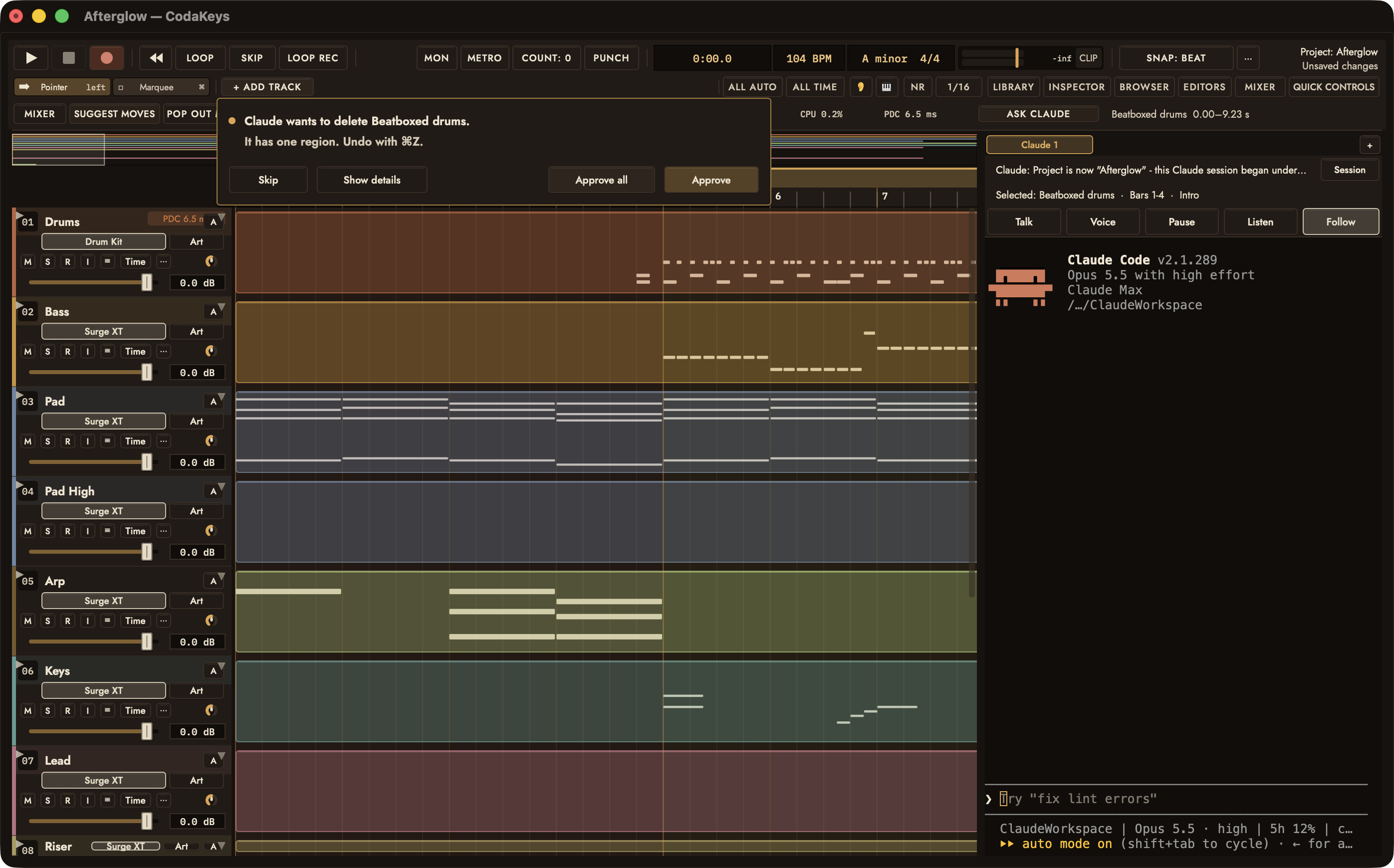
⌘Z undoes Claude’s edits the same way it undoes yours.
Optional add-ons
CodaKeys works with nothing else installed. Settings › Studio Setup lists what you can add, grouped by what you want to do: Talk to Claude, Hear and record, Sounds to play, Sounds from the internet and Claude's extra powers. Each row shows Ready or Not set up, and Explain says what it is for.
- Sung vocals and generated sounds: an ElevenLabs key. In Sounds from the internet, the ElevenLabs Sound Effects row’s Add key keeps it in your Keychain. Every generation shows its cost and waits for your yes.
- Samples from Freesound: a free Freesound key, also in Studio Setup.
- Surge XT, a free synthesizer: install it from Sounds to play.
- Talking to Claude: allow Speech Recognition in Settings › Permissions, then use Voice or Talk in the Claude panel.
Updating
When there’s a new version, open your download link again: it always gives you the current build. Quit CodaKeys, drag the new copy to Applications and choose Replace; your projects, settings and keys stay.
When something is off
Most problems have a one-step fix.
- Claude Code isn't installed: install it and sign in (see above), then press Restart.
- The panel stopped responding: press Restart at the top of the panel, or choose Session › Restart Claude (keep conversation) to pick up where you were.
- A plug-in crashed: CodaKeys restarts it with its last settings and tells you. After a third crash in one session it stays off until you choose Turn Back On in its slot’s menu.
- CodaKeys closed before a new project was saved: the next time it opens, Recover unsaved project offers Recover or Discard.
- Anything else: write to hello@codakeys.com with the version you installed and what happened.
Keys
The shortcuts worth learning first.
| Key | What it does |
|---|---|
| Space | Play and stop |
| R | Record |
| Return | Back to the start |
| M | Mute |
| S | Solo |
| ⌘N | New Project |
| ⌘S | Save |
| ⇧⌘S | Save As |
| ⌘Z | Undo, Claude’s edits included |
| ⌘K | Musical Typing |
| ⇧⌘K | Command Palette |
| ⌘J | Quantize, in the piano roll |
| ⇧⌘H | Humanize, in the piano roll |
| ⌘, | Settings |